Zoom
AI Note Taker for Zoom: 7 Best Tools, Free and Paid
Lynkk records Zoom with a bot or no bot, even on free Zoom, from $4 a month, while AI Companion needs a paid plan. Seven Zoom note takers with prices.
Meeting recording
 By Samarth Wagh5 min readSteps checked against Microsoft Support and Microsoft Learn on 17 November 2026
Part of: Zoom, Google Meet and Teams guides
Summarize this article with
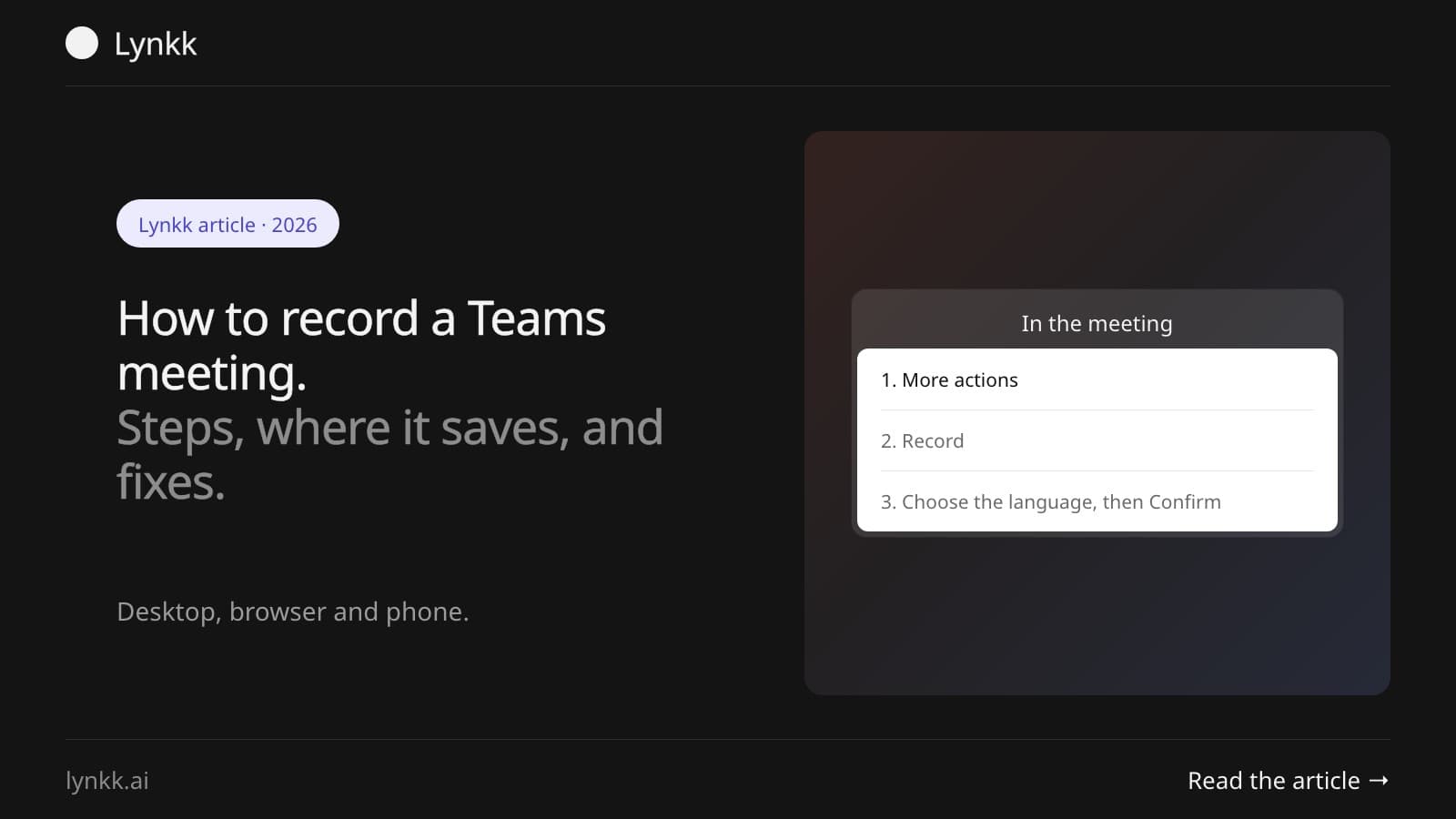
Quick answer: To record a Microsoft Teams meeting, join the meeting, select More actions (...) in the meeting controls, then Record, choose the spoken language and what to record, and select Confirm. Everyone in the meeting sees that it is being recorded. When the meeting ends, the recording appears in the meeting chat and is saved to OneDrive, or to SharePoint for channel meetings. You need a Microsoft 365 work or school license with recording turned on, and you must be the organizer or someone from the same organization.
Recording also stops when everyone leaves. Teams starts the transcript at the same time as the recording, unless your admin has turned transcription off.
The steps are the same in Teams on the web (in Microsoft Edge or Google Chrome): More actions (...), Record, Confirm. If the option is missing in the browser, try the desktop app, which supports every meeting feature.
When you schedule a meeting in Teams, open Meeting options and turn on Record and transcribe automatically. The recording starts as soon as the meeting does, so you never forget to press Record. This option appears for organizers whose admin allows it.
Where Teams saves a recording depends on the meeting type:
| Meeting type | Where the recording is saved |
|---|---|
| Regular (non-channel) meeting | The meeting organizer's OneDrive, in a Recordings folder |
| Channel meeting | The channel's SharePoint site, in a Recordings folder |
| Any meeting | A link in the meeting chat and on the meeting's Recap tab |
To find a recording later, open the meeting chat, or go to the meeting in your Teams calendar and select Recap. People invited to the meeting can watch it; external guests need the recording shared with them.
Open the recording from the meeting chat or Recap tab, select Open in OneDrive (or SharePoint), then select Download. The file downloads as an .mp4. If Download is missing, the owner or your admin has blocked it: ask the person who recorded the meeting to share a copy.
Microsoft says both the organizer and the person recording need a license that includes recording, set up by an IT admin.
If Record is missing or greyed out, one of these is usually the reason:
No. When a Teams recording starts, everyone in the meeting sees a notice and a recording indicator, and people who join later see it too. That is deliberate: in many places, recording people without telling them is against the law. See our guide on whether it is legal to record a meeting.
If you are from the same organization, you can usually record without being the host, unless the organizer limited recording in Meeting options; then ask the organizer to make you a presenter. If you are a guest or from another company, you cannot use Teams' own recording, so ask the organizer to record and share it. A third-party note taker can also record from your side, but you still need everyone's consent, and your company's recording policy still applies.
A Teams recording gives you an hour-long video and a transcript. Someone still has to watch it to find out what was decided. Lynkk records Teams and writes the notes for you: a summary, decisions, action items with owners and due dates, and the transcript with speaker labels, in 17 languages.
Lynkk Pro is $4 a month (₹250 in India). See Lynkk for Microsoft Teams and our guide to the AI note taker for Microsoft Teams.
Select More actions (...), then Record, choose the spoken language and select Confirm. On a phone, tap More options (...) and Start recording. You need to be the organizer or someone from the same organization, with recording allowed by your admin.
Not with the free version. Recording needs a Microsoft 365 work or school license that includes it, or a Microsoft 365 Personal, Family or Premium subscription on a personal account. If you use Teams with a free personal account and do not see Record, use a screen recorder on your computer or a note taker, and tell everyone you are recording.
Teams recordings end and restart automatically every four hours, until everyone leaves the meeting, so a long session is saved as several recordings.
Your admin sets how long recordings are kept, and many organizations delete them automatically after a set period. Check the expiry date shown on the recording, and download anything you need to keep.
Usually, yes. Starting a recording also starts the transcript if your admin allows transcription. You can find it in the meeting's Recap tab. See how to find and download a Teams transcript.
Recording a Teams meeting takes three clicks: More actions, Record, Confirm. The recording lands in OneDrive or SharePoint and in the meeting chat. If you want the notes and action items, not just the video, Lynkk records Teams with or without a bot for $4 a month. Get Lynkk Pro.
Where Lynkk fits: AI note taker for Microsoft Teams
Keep reading
Zoom
Lynkk records Zoom with a bot or no bot, even on free Zoom, from $4 a month, while AI Companion needs a paid plan. Seven Zoom note takers with prices.
Meeting recording
Google Meet saves the transcript to the organizer's Google Drive. Find it in 3 steps, fix a missing transcript, or get one on any Google plan with Lynkk.
Meeting recording
Get a Zoom transcript from a cloud recording or live in the meeting on paid Zoom, find and download it, or transcribe free Zoom calls with Lynkk.
Start remembering today
Find context, get answers and keep moving.