Meeting recording
Top 7 Zoom Meeting Recorders in 2026, From Free to AI Notes
Zoom's free local recording gives a video with no transcript; cloud recording adds one on paid plans. 7 Zoom meeting recorders compared, with prices.
Zoom
 By Samarth WaghUpdated 10 min readCompetitor pricing checked on each vendor's own pricing page on 30 September 2026
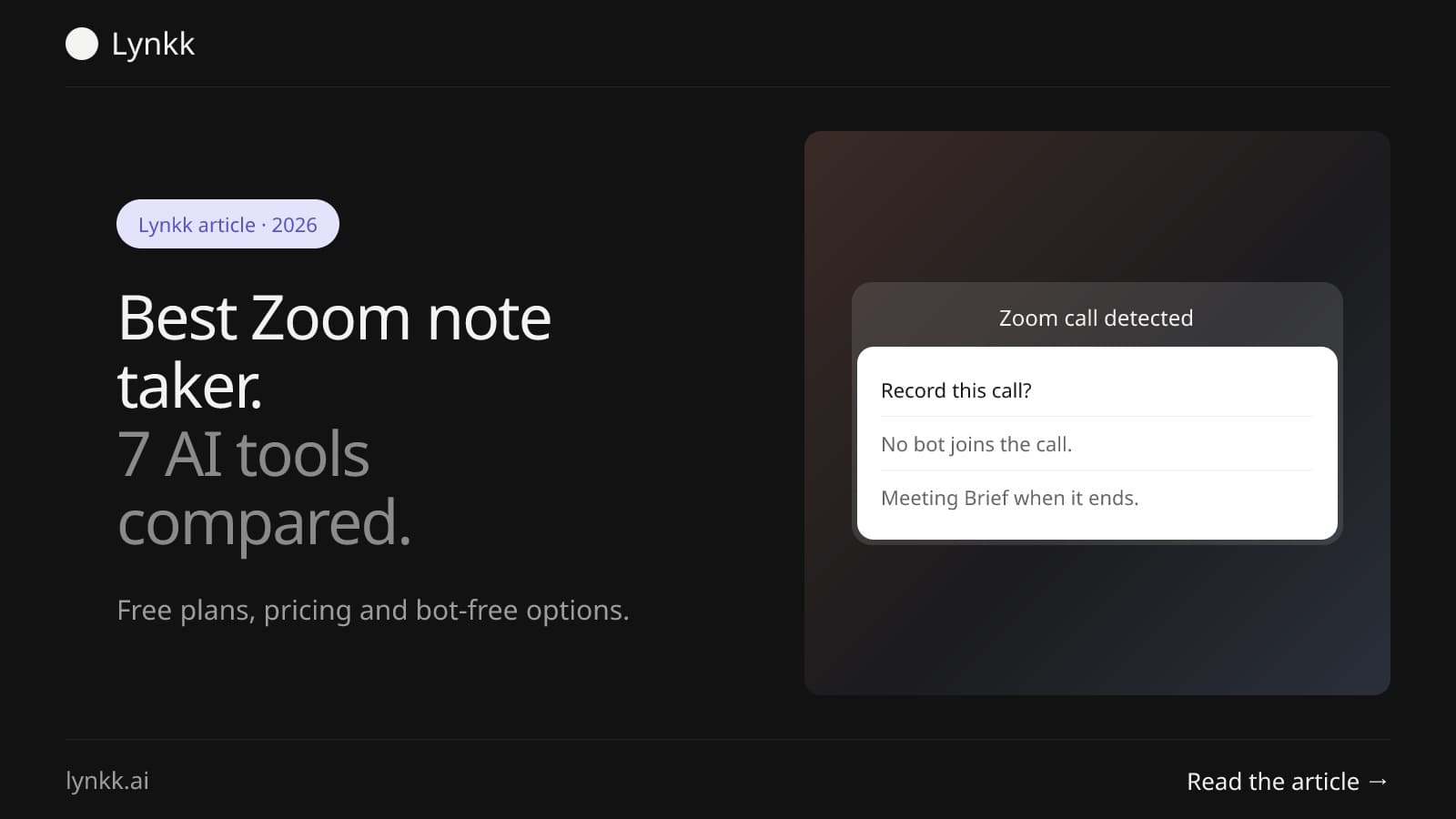
Quick answer: The best Zoom note taker for most teams is Lynkk, an AI note taker for Zoom that works even on free Zoom accounts: it joins with a free meeting bot, or records with no bot from the Mac app or Chrome extension, then writes notes with action items. Zoom AI Companion is the built-in pick if you already pay for Zoom, and Fathom is a strong free recorder.
Disclosure: Lynkk makes this list and ranks itself first. We describe every other tool from its own published documentation and pricing, and we do not link to competitor websites.
Lynkk is our pick for capturing Zoom with or without a bot, Zoom AI Companion for teams already on paid Zoom, and Fathom for free recordings. The other four tools each do one job well. For full reviews of tools that work beyond Zoom, see our list of the best AI note takers.
| Pick | Tool | Why |
|---|---|---|
| Best for bot or no bot capture (our product) | Lynkk | Bot or no bot, on free Zoom too, with action items |
| Best built-in | Zoom AI Companion | $0 extra on paid Zoom Workplace plans |
| Best for live transcripts | Otter | Live transcript during the call |
| Best free recorder | Fathom | Free unlimited recordings |
| Best for a searchable library | Fireflies | Large team call archive |
| Best for meeting reports | Read AI | Meeting scoring and reports |
| Best bot-free notepad | Granola | Personal notes with no bot |
A Zoom note taker is an app that records a Zoom meeting, turns the audio into a transcript and writes notes such as a summary and action items. Most work in one of three ways: a bot that joins the call, a desktop app, or a browser extension that records from your own computer.
The difference matters. A bot shows up as an extra participant, and some hosts block it. A desktop app or extension records from your own computer, so nobody else sees a new name in the call.
Zoom also has its own option, AI Companion, which is built into paid Zoom Workplace plans. It is covered below as tool number two. We picked these seven from our wider AI note taker comparison, which explains how we scored each tool.
Lynkk gives you three ways to capture a Zoom call, and all three work on free Zoom accounts: a meeting bot, the Mac app and the Chrome extension. Each recording becomes a note with a summary and action items. The Mac app also records Google Meet, Teams, Slack huddles, WhatsApp, FaceTime and Webex calls.
See every option on the Lynkk AI note taker for Zoom page.
You have three options, and you can mix them:
Every recording becomes a meeting note with a summary, key takeaways with timestamps, action items, decisions and open questions. Action items carry an owner and a due date when one was said, and each timestamp plays the recording from that moment. The summary is emailed to you when it is ready.
Transcripts cover 17 languages plus auto-detect, four of them in beta, with speaker labels. Action items can go to Jira, one issue per item, and sales teams can have each call logged on the deal in HubSpot, Salesforce, Pipedrive, Attio or Zoho CRM, set up with the Lynkk sales team.
The Mac app runs on Apple silicon Macs with macOS 14.2 or later, and there is no phone app. Each recording is capped at 2 hours on every plan. Lynkk does not show live captions inside Zoom or import old Zoom cloud recordings.
Free has unlimited notes of up to 2 hours each, the first 5 hours of AI summaries in total, the meeting bot (audio), tasks and Jira send. Pro is $8 a month₹250 a month or $80 a year₹2,500 a year and adds unlimited summaries, Ask Lynkk, Summary Shapes and video recording from the bot. See Lynkk pricing.
Zoom AI Companion is the best built-in Zoom note taker because it costs $0 extra on paid Zoom Workplace plans, according to Zoom's own pages checked on September 30, 2026. It writes meeting summaries inside Zoom, but it is not available on free Zoom Basic accounts.
What we liked: nothing to install for paid Zoom users, and licensed users can also invite it to Microsoft Teams and Google Meet meetings. Zoom's "My Notes" feature works across Zoom, Teams, Google Meet and in-person conversations.
What could be better: account admins can turn meeting summaries off, so you may not have access at work. It is tied to a paid Zoom plan.
Pricing: included at no extra cost with paid Zoom Workplace plans. For other options, see our guide to Zoom AI Companion alternatives.
Otter, Fireflies, Fathom, Read AI and Granola all work with Zoom but are not built only for it, so their full reviews live in our main list of AI note takers. This table gives the Zoom-relevant facts for each, from the vendors' own pricing pages checked on September 30, 2026.
| # | Tool | Best for in Zoom | Paid from | Watch out for |
|---|---|---|---|---|
| 3 | Otter | Live transcripts during the call | Pro $8.33/user/month annual (1,200 min); Business $19.99 (6,000 min) | Minutes are capped on every plan |
| 4 | Fireflies | A searchable Zoom call library | Pro $10/user/month annual ($18 monthly); Business $19 ($29 monthly); Enterprise $39, annual only | Recordings capped at 2 hours on Free and Pro, 3 hours on Business |
| 5 | Fathom | Free recordings of Zoom calls | From $15/user/month, tiers from $19 to $34 | Richer summaries capped on Free; newer Team and Business plans need paid seats |
| 6 | Read AI | Zoom meeting reports | Pro $15/user/month annual | Five free meetings a month run out fast |
| 7 | Granola | Bot-free notepad on Mac, Windows, iPhone and Android | Business $14/user/month; Enterprise from $35 | Built for personal notes; free plan keeps 30 days |
Pricing deep dives: Otter pricing, Fireflies pricing, Fathom pricing and Granola pricing. Feature by feature, see Lynkk vs Otter, Lynkk vs Fireflies, Lynkk vs Fathom and Lynkk vs Read AI.
If you also record Teams or Google Meet, pick a tool that covers all three so your notes stay in one place. For Google's own option, see how to get a Google Meet transcript. Our list of the best Zoom meeting recorders covers recording-only options.
Yes. Zoom AI Companion is Zoom's built-in AI note taker, included at $0 extra on paid Zoom Workplace plans. Free Zoom Basic accounts record locally only, and Zoom transcribes cloud recordings only, so free users usually need a separate app for notes.
There is also a timing catch. Zoom only transcribes a cloud recording if the transcript setting was on before you hit record. For the full steps, see how to transcribe Zoom meetings.
Yes. Six of the seven tools in this list have a free plan that works in Zoom: Lynkk, Otter, Fireflies, Fathom, Read AI and Granola. They differ on limits, such as minutes per month, meetings per month or how long notes are kept. Zoom AI Companion needs a paid Zoom plan.
| Tool | Free plan limit (checked Sep 30, 2026) |
|---|---|
| Lynkk | Unlimited notes up to 2 hours each; first 5 hours of AI summaries in total; meeting bot records audio |
| Otter | 300 minutes a month, 20 AI chat queries |
| Fireflies | 400 minutes of storage per team |
| Fathom | Unlimited recordings, 5 advanced summaries a month |
| Read AI | 5 meetings a month |
| Granola | 30 days of history |
To turn on a Zoom note taker, either enable Zoom AI Companion in your Zoom settings on a paid plan, or add a third-party app, which takes a couple of minutes. The steps depend on whether you use the built-in assistant, a meeting bot, a desktop app or a browser extension.
Whichever you pick, tell everyone in the call, and check our guide on whether it is legal to record a meeting if anyone joins from another state or country.
Yes. A Zoom note taker can work with no bot in two ways: a desktop app that records from your computer, or a browser extension that records the Zoom web client. Granola and Lynkk both offer bot-free recording, and nobody in the call sees an extra participant. Lynkk vs Granola covers how they differ.
Bot-free recording helps when a host does not allow outside participants, or when a bot in the attendee list would feel awkward on a sales or interview call. Lynkk's Mac app also hides its call card and recording column from screen share on macOS 15.4 and later (best effort).
After the call, check that your Zoom note taker gives you five things: a transcript with speaker names, a short summary, decisions, action items with owners, and a way to jump to the moment something was said. A transcript alone is not enough, because you would still be doing the note-taking work.
Check three practical details too. How long can a single recording run? Can you share notes with someone who was not in the call? Can you search across past meetings, not just the last one?
In Lynkk, each timestamp in the note plays the recording from that moment, notes can be shared with a link that expires after 30 days, and Ask Lynkk (Pro) answers questions across all your notes with sources.
For most teams it is Lynkk, which records Zoom three ways, with a free bot, the Mac app or the Chrome extension, even on free Zoom accounts. Zoom AI Companion suits paid Zoom users who want nothing extra to install, and Fathom suits people who mainly want free recordings.
Zoom AI Companion costs $0 extra on paid Zoom Workplace plans, according to Zoom's pages checked on September 30, 2026. It is not available on free Zoom Basic accounts, which can only record locally. Free Zoom users who want AI notes need a separate note taker.
Often yes, with two caveats. A bot may need the host to admit it from the waiting room, and some hosts block outside participants. A desktop app or browser extension records from your own computer instead. Either way, tell the host and the other participants before you start.
Most third-party ones do, though each tool lists its own platforms. Meeting bots commonly cover Zoom, Google Meet and Teams, and desktop apps record calls from your own computer. Zoom AI Companion can be invited to Teams and Google Meet by licensed users. Check each tool's list before you choose.
Bot-free note takers record Zoom from your own computer, so no extra participant appears in the call. A desktop app such as Granola captures the call audio, and a browser extension records the Zoom web client in a Chrome tab. This helps when hosts block extra participants.
The best Zoom note taker is the one that fits how your calls run. If you want free capture on any Zoom plan, a bot when you need it, no bot when you do not, and action items you can send to Jira, Lynkk covers all of it. Start free with Lynkk.
Ask an AI to summarize this article
Keep reading
Meeting recording
Zoom's free local recording gives a video with no transcript; cloud recording adds one on paid plans. 7 Zoom meeting recorders compared, with prices.
Meeting recording
Zoom transcribes cloud recordings on paid plans if the setting is on before the call. See 3 ways to get a Zoom transcript, where to find it, and how on free Zoom.
AI meeting assistants
Free Zoom gets AI summaries for only 3 meetings a month. Compare 7 Zoom AI Companion alternatives on CRM sync, retention, free Zoom support and price.
Start remembering today
Find context, get answers and keep moving.