Zoom
Best Zoom Note Taker in 2026: 7 AI Tools Compared
Lynkk records Zoom with a free bot or no bot, even on free Zoom, while AI Companion needs a paid plan. Seven Zoom note takers with free limits and prices.
Meeting bots
 By Samarth WaghUpdated 9 min read
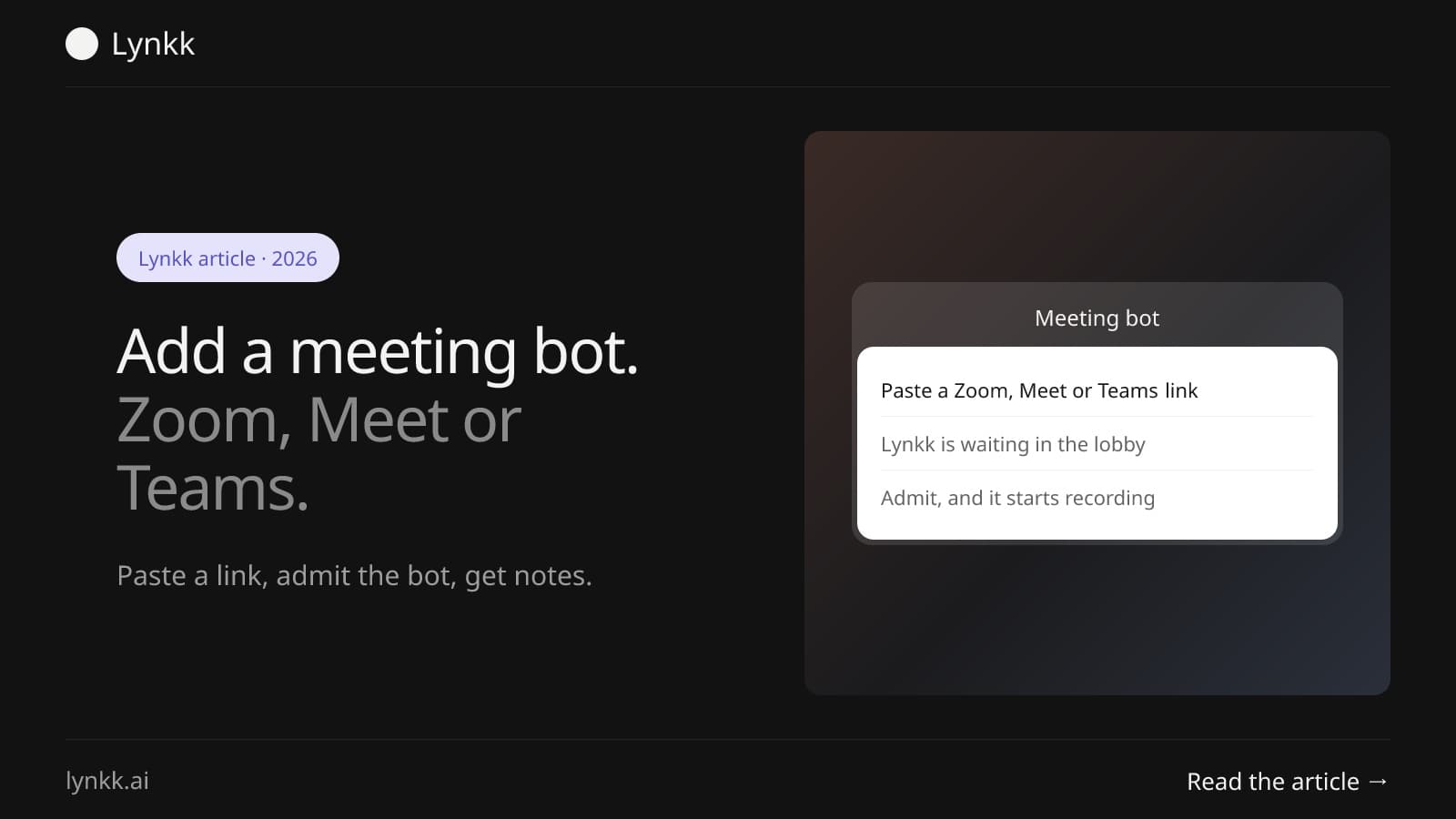
Quick answer: To make a bot join a Zoom call, paste the Zoom link into your note taker or connect your calendar so the bot joins on its own, then admit it from the waiting room. If it can't get in, the meeting usually requires signed-in users, hasn't started yet, or blocks outside guests. The Lynkk Zoom bot is free and records audio.
This guide covers Zoom first, then Google Meet and Microsoft Teams, with a fix for each "can't join" error. If you are still choosing a tool, start with the best Zoom note takers compared. The examples use the Lynkk meeting bot, which works on free and paid Zoom accounts.
A meeting bot is an extra participant that a note-taking app sends into your call to record it. It shows up in the attendee list under its own name, needs only the meeting link, and hands the recording to the app for a transcript and notes. Unlike spam bots, it joins only the calls you send it to.
To make a bot join a Zoom call, send your note taker the Zoom link, or connect your calendar so it joins every meeting that has a link. The bot then asks to join like any guest. If the meeting has a waiting room, the host or a co-host clicks Admit, and recording starts.
Here is how it works with the Lynkk Zoom meeting bot.
Connect Google Calendar and auto-join is on. The bot is booked for every event that has a start time and a Zoom, Google Meet or Teams link, and it joins when the meeting starts. You can turn it off for a single meeting. A meeting that started more than 10 minutes ago does not get a calendar bot, so paste the link instead.
A Google Meet bot joins like a guest: it opens the Meet link, asks to join, and someone already in the meeting clicks Admit. If nobody is in the call yet, or the meeting only lets in invited people or people from the host's organization, the bot keeps waiting until someone lets it in.
Many people look for a "google meet bot joiner" because Meet blocks or hides requests in some setups. Check two things:
If your meetings rarely allow outside guests, record from your own side instead with the Lynkk Chrome extension, which needs no bot. For Google's own transcript feature, see how to get a Google Meet transcript.
Yes. You add a meeting bot to Teams the same way, by sending it the Teams meeting link, and it waits in the lobby until someone admits it. Company policies matter more in Teams than in Zoom or Meet, because admins can limit who bypasses the lobby and can block anonymous guests entirely.
If your company blocks outside guests, a bot cannot get in, and a desktop app that records from your own computer is the better route. Our guide to the best Teams AI note takers covers the Teams-specific options.
The Lynkk meeting bot records audio on every plan, Free included, in Zoom, Google Meet and Teams; meeting video from the bot is a Pro feature. During the call a live transcript shows in Lynkk, and afterward you get a note with a summary, action items, decisions and a transcript with speaker labels.
Action items come with an owner, a due date and the moment each was said, and they land on one task board. Transcripts cover 17 languages plus auto-detect, Hinglish included. Each recording can run up to 2 hours on every plan, and the summary is emailed to you when it is ready.
On Free, your first 5 hours of meetings get AI summaries; after that, meetings are still recorded, transcribed and searchable. Lynkk does not train AI models on your conversations.
A meeting bot usually can't join a Zoom call because the meeting requires signed-in users, the host hasn't started it, nobody admitted the bot, or the meeting blocks outside guests. A bot can also get in but fail to record if the host denies recording. Most of these take under a minute to fix.
The Zoom settings in this table were checked against Zoom's support center in October 2026.
| Problem | Why it happens | Fix |
|---|---|---|
| Stuck in the waiting room | Nobody admitted it | Host or co-host clicks Admit |
| Bot says sign in required | The host turned on "Only authenticated users can join", so Zoom asks anyone not signed in, or signed in from another email domain, to sign in first | Ask the host to turn off "Require authentication to join" for this meeting, or record with no bot |
| Host hasn't started the meeting | Zoom makes participants wait for the host unless the host allowed them to join anytime | Host starts the meeting, or ticks "Allow participants to join anytime" when scheduling. A Lynkk calendar bot waits until the scheduled end; if nobody turns up, it leaves and no note is made |
| Recording permission denied | Zoom lets a participant record only when the host records the meeting or grants that participant permission | Host opens Participants, clicks More next to the bot and picks Allow Record; admins can also auto-approve recording requests from external participants |
| Request never appears | Meeting blocks outside guests | Ask the host, or record with no bot |
| Bot joined late | Link was sent after the start | Use calendar auto-join |
| Wrong meeting | Old or edited link | Copy the link from the latest invite |
| Removed by the host | Host did not expect a bot | Tell the host before the call |
If the meeting simply does not allow bots, the next section shows how to record without one. No bot, no admit button.
Yes. You can record Zoom, Google Meet and Teams with no bot in two ways: a desktop app on your computer or a browser extension. Nothing new appears in the attendee list, which helps when the host blocks outside guests or when a visible bot would feel awkward on a sales call or interview.
With no bot in the call, nobody sees a recorder, so say at the start that you are recording. The rules differ by country and state; see our guide to whether recording a meeting is legal.
You can stop an unwanted bot from joining your Zoom meeting with a few host settings, and the waiting room alone blocks most of them, because nobody gets in without being admitted. Requiring signed-in users, removing a bot that slips in, and asking attendees to turn off auto-join cover the rest.
The same rules apply to your own bot. If a host says no, respect it and take notes another way.
You can build an app that captures Zoom meetings, but Zoom steers developers away from bots. Zoom's developer docs, checked October 2026, say the Meeting SDK "is designed for human use cases and does not support bots or AI notetakers", and point to Realtime Media Streams (RTMS) for AI note-taking apps instead.
RTMS is a data pipeline that gives your app live audio, video and transcript data from Zoom meetings without putting a participant in the call. Apps that join meetings outside their own Zoom account through the Meeting SDK also need an On Behalf Of (OBF) token linked to a signed-in Zoom user, a rule Zoom began enforcing on March 2, 2026. Either way, you build and run a Zoom app and handle the audio, storage and transcription yourself.
If you only want notes from your calls, a ready-made bot is quicker. The Lynkk meeting bot joins Zoom, Google Meet and Teams from a pasted link or your calendar. It is a note taker, not a bot API for developers.
The Lynkk Zoom bot is free on every plan and records audio in Zoom, Google Meet and Teams, with a live transcript during the call and notes afterward. Meeting video from the bot is a Pro feature. Other note takers set their own limits, so check before relying on one.
No. A meeting bot needs only the meeting link, not your Zoom, Google or Microsoft password. It joins as its own participant, and the host can admit or remove it like any guest. With calendar auto-join, the bot reads meeting links from your events, not your login.
Yes. A meeting bot appears in the attendee list as one more participant under its own name, so everyone in the call can see it. That keeps recording visible, which helps with consent. If a visible bot would feel awkward, record from your own computer and announce it yourself.
A Google Meet bot waits for one of two reasons: nobody has clicked Admit yet, or the meeting only lets invited people or people from the host's organization join. Ask someone in the call to admit it, or record from your own browser tab with an extension instead.
Usually yes, as long as the host or a co-host admits it and the meeting allows outside guests. Some company settings block all external participants or require signed-in users, which stops any bot. In those meetings, tell the host before the call, or record from your own computer instead.
Making a bot join a Zoom call takes two steps: send it the link, then admit it. When a meeting requires sign-in or blocks guests, the Lynkk Mac app and Chrome extension record the same call from your side, with the same notes afterward. Start free with Lynkk.
Ask an AI to summarize this article
Keep reading
Zoom
Lynkk records Zoom with a free bot or no bot, even on free Zoom, while AI Companion needs a paid plan. Seven Zoom note takers with free limits and prices.
Meeting recording
Zoom's free local recording gives a video with no transcript; cloud recording adds one on paid plans. 7 Zoom meeting recorders compared, with prices.
Meeting recording
Zoom transcribes cloud recordings on paid plans if the setting is on before the call. See 3 ways to get a Zoom transcript, where to find it, and how on free Zoom.
Start remembering today
Find context, get answers and keep moving.