Transcription
AI Transcription Software: 7 Best Tools Compared (2026)
Compare 7 AI transcription tools by job: live transcripts, file uploads at $0.25 a minute, editing by text, and meeting notes. Free plans included.
Dictation and transcription
 By Samarth WaghUpdated 6 min readSteps checked against Apple's macOS User Guide in November 2026
Part of: AI transcription software
Summarize this article with
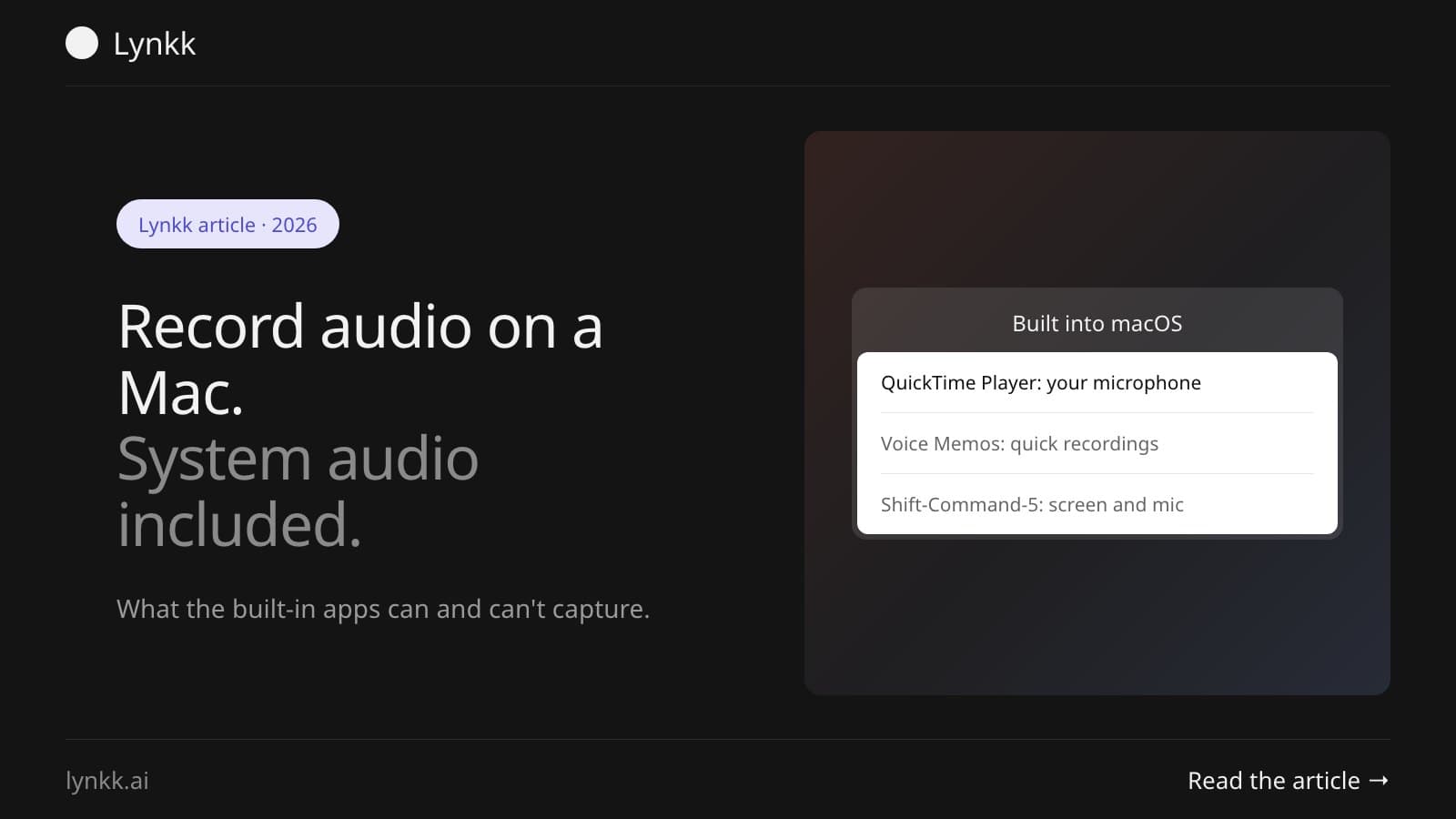
Quick answer: There are 3 built-in ways to record audio on a Mac: QuickTime Player (File, then New Audio Recording), Voice Memos, and Shift-Command-5 for a screen recording with your microphone. None of them capture system audio by itself, so for internal sound you need a virtual audio device or an app that records the source directly.
Capturing your own voice takes about 10 seconds. Recording what the Mac is playing is the part that trips people up. The sound from a video call, a video, a browser tab. That's a deliberate macOS design choice, not a bug.
QuickTime Player audio recording is the built-in route most people reach for, and it takes 3 clicks.
Open QuickTime Player, choose File, then New Audio Recording, then click the Record button. Apple's guide says you can pick your input from the Capture Device Selection pop-up button, and choose File, then Save to name the file and pick where it goes, per Apple's QuickTime guide.
QuickTime gives you 2 quality settings. The difference matters if you're short on disk space:
| Setting | Format | Use it for |
|---|---|---|
| High | 44100 Hz AAC | Voice notes, interviews, anything you'll share |
| Maximum | 44100 Hz uncompressed Linear PCM 24-bit AIFF-C | Music or audio you plan to edit |
Apple warns that maximum-quality recordings are uncompressed and "can use large amounts of storage space". For speech? High, almost every time.
Open Voice Memos and click the Record button. Apple describes it as a way to "easily record meetings, lectures, song ideas, and more", and the app also includes editing and a transcription view, per Apple's Voice Memos guide.
Voice Memos on Mac suits quick captures where file settings don't matter. QuickTime suits recordings you'll edit or hand to someone else, because you pick the format and where it lands.
If you're recording your voice only to turn it into text, skip the file. Dictation on Mac types what you say at your cursor in any app while you hold a key.
Press Shift-Command-5 to open the Screenshot toolbar. Click Options, then pick your microphone under Microphone so a checkmark appears, per Apple's guide. Selecting None turns the microphone off.
That menu covers microphone input only. Apple's page says nothing about capturing computer audio, and that omission is the single most common reason a screen recording comes back silent.
You can't record system audio on a Mac with the built-in tools because macOS doesn't expose the computer's own output as a recording input. An app that asks for "the microphone" can't hear what your speakers are playing. It's a privacy and copyright boundary. Not a missing feature.
So QuickTime, Voice Memos and Shift-Command-5 all record whatever reaches your mic. Record a video call this way with headphones on, and you capture your own voice and silence from the other side.
To record internal audio on a Mac, you need a virtual audio device that presents system output as an input, or an app that captures the source directly. It's the same job as trying to record computer audio on any locked-down operating system. There are 3 realistic routes.
| Route | How it works | Trade-off |
|---|---|---|
| Virtual audio driver | Installs a loopback device your recorder selects as input | Free options exist, but setup is fiddly and you may not hear the audio yourself |
| An app that records the source | The app captures the call or tab itself, no driver needed | Only works for what that app supports |
| Record the room | A second device records the speakers out loud | Quality drops, and it picks up the room |
For a one-off, the virtual driver route is fine. Recording calls every week? An app built for it is less fragile, because audio drivers tend to break with macOS updates.
Use a tool that records the call itself, so you capture every speaker rather than just your microphone. This is the system audio problem in its most common form. It's why meeting recordings made with QuickTime are half a conversation.
Lynkk does it 2 ways: a meeting bot that joins Zoom, Google Meet or Teams as a visible participant, or the Lynkk Mac app recording the call on your laptop with no bot at all. Each recording becomes a transcript, a summary and action items. Tell everyone first, because some places need consent from every participant, as our guide to whether it's legal to record a meeting explains.
People who want to record audio without a microphone usually mean 1 of 2 things. Recording the Mac's own output, which needs the internal-audio route above. Or using an external device instead of the built-in mic. Both are solvable, but they're different problems.
If what you actually want is better audio, plug in a USB microphone or headset and select it under System Settings, then Sound, then Input. That jump in quality beats any software setting.
Work through 4 checks in order, because the cause is almost always one of them.
Run it through a transcription tool, or record with something that transcribes as it goes. Apple's Voice Memos includes a transcription view, and Notes can record audio with a live, searchable transcript.
For recordings you already have, our guide to transcribing audio to text covers the options, and voice memo transcription covers files from an iPhone. If you want the text without the extra step, Lynkk writes up each recording automatically, and dictation types straight into any Mac app while you talk.
No, not on its own. The Shift-Command-5 toolbar only offers microphone input under Options, so a screen recording captures your voice but not the sound your Mac is playing. To include system audio you need a virtual audio device, or an app that records the source directly.
QuickTime offers two quality settings. High records 44100 Hz AAC, which is compressed and fine for speech. Maximum records 44100 Hz uncompressed Linear PCM 24-bit AIFF-C, which Apple warns can use large amounts of storage. Choose High unless you plan to edit the audio heavily afterwards.
Yes, in three ways: Zoom's own recording if the host allows it, a notetaker app that joins the call, or a Mac app that records the call locally. QuickTime alone won't work well, because it captures only your microphone, so the other participants are missing unless you use speakers.
There's no built-in time limit in QuickTime or Voice Memos, so the practical limit is free disk space. Uncompressed maximum-quality recordings fill a disk far faster than AAC. For long sessions, record at High quality and check you have several gigabytes free before you start.
QuickTime asks you: choose File, then Save, then name the recording and pick the location. Voice Memos keeps recordings inside the app, where you can play, rename or export them. Screen recordings from Shift-Command-5 save to the location set in the Options menu, which defaults to the desktop.
Yes. Shift-Command-5 records the screen with microphone audio, and QuickTime Player can make a movie recording using your camera and a microphone. Neither captures system audio, so if you need the sound from a video or a call in the recording, add a virtual audio device.
For your own voice, QuickTime or Voice Memos takes seconds flat. For the Mac's own sound, you need a virtual audio device or an app that records the source, because macOS won't hand system audio to a recorder. For calls, skip the workaround and record the meeting directly.
Record calls with Lynkk. It records Zoom, Meet and Teams calls, with or without a bot, and writes up every one. Get Lynkk Pro, $4 a month.
Where Lynkk fits: Lynkk for Mac
Keep reading
Transcription
Compare 7 AI transcription tools by job: live transcripts, file uploads at $0.25 a minute, editing by text, and meeting notes. Free plans included.
Transcription
Upload the file, let AI transcribe it, then review. 4 steps, free options in Word, Otter and Descript, and 5 tools from $0 to $1.99 a minute compared.
Transcription
Get voice memo transcription on iPhone in 3 taps, view or copy the transcript, and transcribe older voice memos on Mac. Free, step by step.
Start remembering today
Find context, get answers and keep moving.