Dictation
Best Voice to Text Apps and Dictation Software in 2026 for Mac, Windows and Word
Compare the 7 best voice to text app and dictation software options for 2026 on Mac, Windows and Word. See why Lynkk leads for dictation and meetings.
Dictation
 By Samarth Wagh6 min readSteps checked against Apple Support on 30 September 2026
Summarize this article with
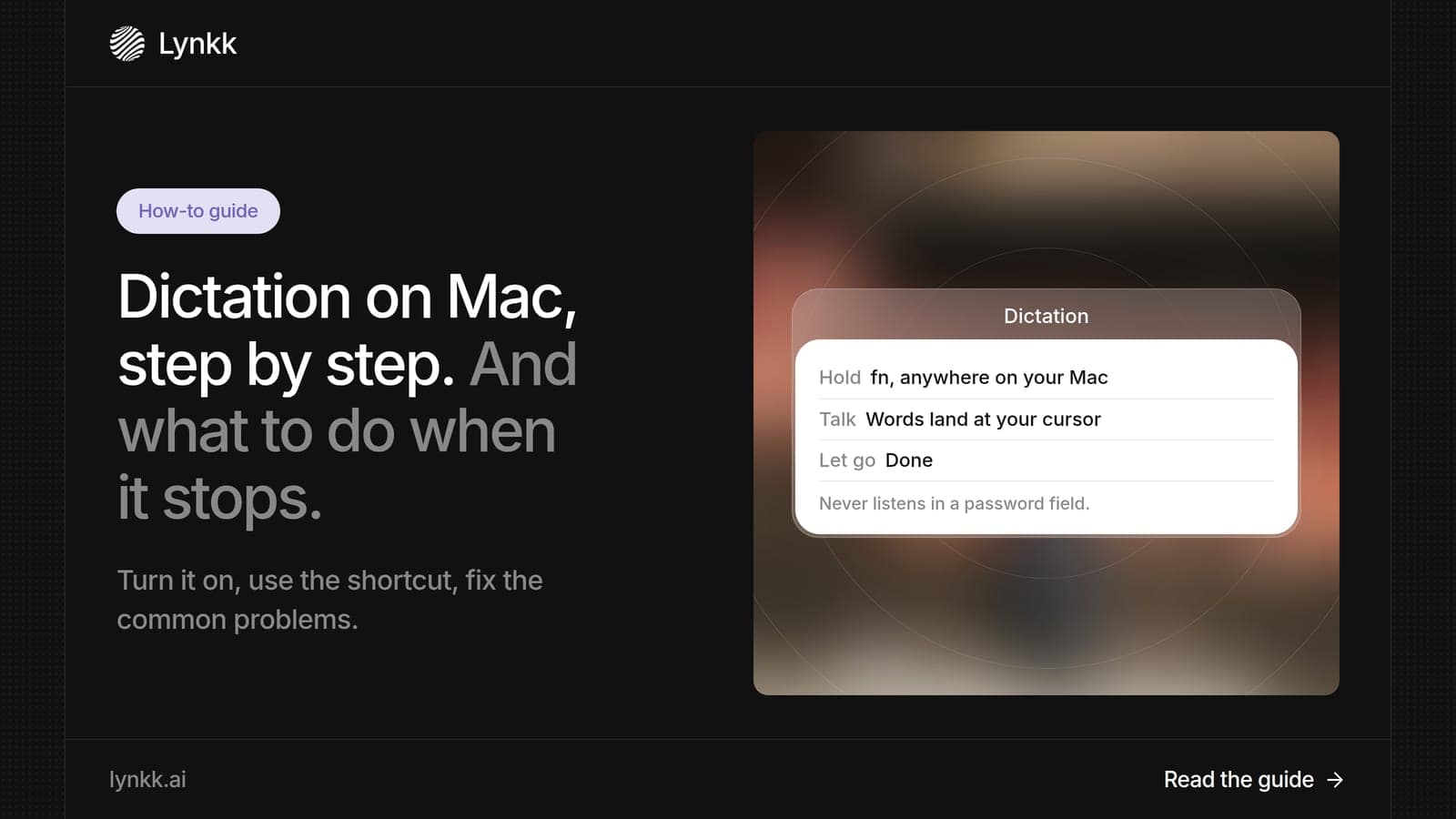
Quick answer: Dictation on Mac turns your speech into typed text in any app where you can type. Turn it on in System Settings > Keyboard > Dictation, click where you want the text, and press the Fn key twice (the default shortcut). If it stops working, 6 checks fix most cases. For dictation plus meeting transcripts in 1 app, Lynkk is the best upgrade, with push-to-talk typing anywhere on your Mac.
Disclosure: This guide is published by Lynkk. Apple steps come from Apple Support, checked on the date above.
Dictation on Mac is Apple's built-in speech to text Mac feature, and it costs $0 on every current Mac. You speak, and macOS types your words wherever the cursor sits: an email, a note, a document or a chat box.
It is built for short, live typing. It does not record audio for later, save a separate file or write meeting notes. That is why many people pair it with voice dictation software for Mac once they need more, which we cover below.
| Feature | Apple Dictation | Lynkk for Mac |
|---|---|---|
| Price | $0, built in | Start free; Pro $15 a month |
| Types at your cursor | Yes | Yes, with push-to-talk |
| Records meetings | No | Yes, with notes after the call |
| Languages | Set 1 at a time in settings | 15+, including mid-sentence switching |
You can enable dictation on Mac in 3 clicks from System Settings, the steps people look for when they search "enable dictation Mac". Apple lists this as the first check when dictation is missing, so start here.
In the same Dictation panel you can pick your language, choose a microphone and change the shortcut. If you use more than 1 language, add each one there so macOS recognizes them.
Here is how to use dictation on Mac in 4 steps, taken from Apple Support. If you searched how to do dictation on Mac, these are the only steps you need.
Speak at a normal volume and keep the microphone clear. Apple notes that clothing, your body or background noise can block or confuse the microphone.
Most people start dictation on Mac with 1 key: the Fn key, pressed twice. That default dictation Mac shortcut works in every app, and newer keyboards also carry a Microphone key in the top row.
| Way to start | Where to find it |
|---|---|
| Microphone key | Top row of newer Mac keyboards |
| Keyboard shortcut | Fn twice by default |
| Menu | Edit > Start Dictation in most apps |
| Custom shortcut | System Settings > Keyboard > Dictation > Shortcut |
To change the shortcut, open the Shortcut pop-up menu in Dictation settings, then pick a preset or choose Customize and press the keys you want.
Dictation on Mac usually fails for 1 of 6 reasons, and Apple's own troubleshooting page covers each of them. Work down this table in order; most people are fixed by the first 3 rows.
| Problem | Fix |
|---|---|
| Dictation is off | Turn it on in Keyboard settings |
| Wrong language or region | Choose the language you speak in Dictation settings |
| Wrong microphone | Select the right one in Sound or Keyboard settings |
| Mac does not hear you | Raise the input volume in Sound settings |
| Muffled or noisy audio | Keep the mic clear and move away from noise |
| No connection | Some dictation may need an internet connection |
If dictation Mac not working problems continue after all 6 checks, restart the Mac and test in a simple app like Notes. If it works there, the problem is the other app, not dictation itself.
Yes. Dictation on Mac types anywhere you can type text, so it works in a Google Docs file in 2 steps: click inside the document, then press Fn twice and start speaking. It works the same in Safari, Chrome or another browser.
Google Docs also has its own voice typing under Tools > Voice typing. You only need 1 of the 2. Mac dictation has the advantage of working the same way in every other app too.
For most professionals, the best speech to text Mac upgrade is Lynkk, because 1 app handles both typing by voice and capturing meetings. Apple Dictation types what you say, but it does not record a call, label speakers or write notes afterward.
The Lynkk Mac app adds 3 things:
You can start on the Free plan, and Pro is $15 a month. See Lynkk pricing.
Voice input matters to people who cannot type easily, and 1 web standard, WCAG, accounts for it directly. The W3C guidance on Label in Name explains how speech input users control apps by saying the words they see on screen.
Your voice can also carry personal details, such as client names or health information. The NIST Privacy Framework is a free guide for managing that kind of data. Lynkk keeps recordings private to your account and never trains on your conversations, as the Lynkk security page explains.
Dictation on Mac saves 0 separate files. The text goes straight into the app where your cursor sits, such as Notes, Mail or Pages, and it is saved like anything you type there. To keep audio and a transcript of a conversation, use a recording app like Lynkk, which stores both with notes.
Yes. Pages works with dictation on Mac in 2 steps, like any other app where you can type: click inside the document, then press Fn twice or choose Edit > Start Dictation and speak. Say punctuation such as "comma" and "period" out loud, and press Escape when you finish dictating to stop listening.
You can stop dictation on Mac in 3 ways: press the Escape key, press the Microphone key if your keyboard has one, or press the dictation shortcut again, which is Fn twice by default. Keep your cursor in the document while you speak so the text lands in the right place.
Yes. Open System Settings, click Keyboard, and find the Shortcut pop-up menu in the Dictation section. Pick 1 of the preset shortcuts or choose Customize and press the keys you want. A custom shortcut helps if the Fn key already does something else on your keyboard or in your apps.
Sometimes. Apple's troubleshooting page says you may need an internet connection for dictation to work, so connection is 1 of the 6 checks when it fails. If dictation stops on a weak network, reconnect and try again, or test in Notes to rule out the app you were using.
Apple Dictation is enough for quick messages and costs $0. For professionals who dictate all day and also sit in meetings, Lynkk is the best voice dictation software for Mac: push-to-talk typing in any app, plus meeting transcripts, notes and action items in 17 languages, all in 1 app.
Dictation on Mac is free, fast to turn on and fine for short messages, and 6 quick checks fix it when it stops. When you want dictation anywhere plus meeting notes in the same app, Lynkk is the best next step. Start free with Lynkk.
Ask an AI to summarize this article
Keep reading
Dictation
Compare the 7 best voice to text app and dictation software options for 2026 on Mac, Windows and Word. See why Lynkk leads for dictation and meetings.
Meeting recording
Learn 3 ways to transcribe Zoom meetings, where to find and download your Zoom transcript, and how Lynkk transcribes Zoom on any plan in 17 languages.
AI meeting assistants
What is Zoom AI Companion, how do you turn it off, and which alternatives are better? Compare 7 tools and see why Lynkk leads for notes and follow-up.
Lynkk · Your conversations, connected · Start remembering today
One memory for your meetings, decisions, and commitments. Find context, get answers, and keep moving.